
Many councils and camps use Scouting Event by Black Pug Software to manage event and camp registrations and advancement earned during summer camps or events. Black Pug is a third-party application and is not owned or maintained by Scouting America.
If your council or camp uses Scouting Event to record advancement and provides a Scoutbook Export report, you can use that file to import merit badge advancement into Scoutbook.
Permission Requirements: You must have the appropriate permissions in Scoutbook to import advancement records.
Note: The Scoutbook export uses Scoutbook’s advancement.csv format. Cub Scout awards are not included because Scoutbook does not support importing those awards through this process.
Before You Begin
For the best experience:
- Google Chrome is the recommended browser for Scoutbook Plus.
- Install the Feature Assistant Extension for Scoutbook
- Obtain the “Scoutbook Export” report from the Reports section of your registration in your council or camp’s Scouting Event (Black Pug) system.
Reviewing and Preparing the Import File
Before importing, review the export file to ensure the advancement data is accurate. Correcting issues before importing is usually faster than correcting them afterward in Scoutbook.
- Open the export file in spreadsheet software such as:
- Microsoft Excel
- Google Sheets
- Review the advancement records for accuracy before importing.
- It is often easier to correct errors before the data is imported into Scoutbook.
- If you edit the file, save it as a CSV (.csv) file.
- Scoutbook requires CSV format for imports.
- Do not remove or change leading zeros in any data fields.
- Verify that Scout names closely match the names on the official Scoutbook roster. Scoutbook provides matching tools during the import process, but correcting names beforehand can make the import easier.
- Remove any advancement records that should not be imported.
- Rank requirement entries will not import through this process.
- Consider removing those rows from the file before importing to simplify review and reduce confusion.
- Rank requirements must be entered separately.
- Consider using Quick Entry to enter rank advancement data after the merit badge import is complete.
Accessing the Merit Badge Import Feature
The Merit Badge Import feature is currently available through Scoutbook Legacy.
- Sign in to Scoutbook Plus.
- Open Scoutbook Legacy.
- Select My Dashboard.
- From the top menu, select Administration (gear icon).
- Select your unit.
On the unit administration page, scroll down to locate Import Merit Badge Advancements.
Importing the File
- Select Import Merit Badge Advancements.
- Choose your CSV import file.
- Review the available import options.
- Configure the desired import settings.
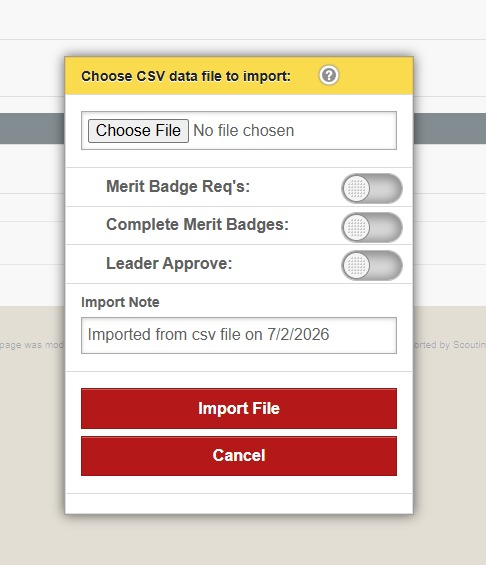
Set Import Options
You have several options available when importing. Enable each option based on the advancement data you want to import.
- Merit Badge Req’s: imports all merit badge requirements data
- Complete Merit Badges: imports merit badges that have been marked as complete. This does not import any requirements data.
- Leader Approve: marks all imported advancement data as ‘Approved’ in Scoutbook
- Import Note: This text field adds the same comment to each imported merit badge or requirement record.
Import Note (Recommended)
Adding an Import Note is strongly recommended.
The note will be added to every imported advancement record and can be extremely helpful when reviewing advancement history later.
Example:
“Completed at Sunshine Scout Camp Week 2 June 2025 via Black Pug export report”
Note: The comment will be attributed to the user performing the import, so there is no need to include your name in the note.
Leader Approve Option
The Leader Approve setting is optional.
Some units prefer to leave Leader Approve unchecked and perform a second review within Scoutbook before approving the advancement records.
While this requires additional time, it can help identify issues such as:
- Advancement credited to the wrong Scout
- Missing advancement completions
- Advancement records that do not match what the unit knows occurred at camp
- Other discrepancies in the imported data
Click “Import File”.
Scoutbook will process the import. Depending on the number of records being imported, this may take several minutes.
After the Import
Compare imported records against the camp advancement report to confirm all expected advancement was imported successfully. After the import is complete:
- Review the imported advancement records.
- Approve advancement as needed.
- Enter any rank requirements separately using Scoutbook tools such as Quick Entry.
- Retain a copy of the original export file for your records.
Troubleshooting Tips
- Verify the file is saved as a .csv file.
- Confirm Scout names match the unit roster as closely as possible.
- Ensure leading zeros have not been removed from the file.
- Review the file for incorrect or duplicate advancement records before importing.