
A Quick one page guide for Merit Badge Counselors is here:
Note for Troops
NOTE FOR TROOPS: A guide for units working with merit badge counselors can be found here.
Full Scoutbook Guide for Merit Badge Counselors
To be a merit badge counselor you must register with Scouting America at your local council for the position and to be approved to counsel certain badges. For details on how to register, contact your local council service center.
Once you are registered, you automatically have access to Scoutbook.
You can connect to Scouts and track their merit badge progress even if their unit does not use Scoutbook. Use Scoutbook as your tracking tool.
Once registered with Scouting America as a merit badge counselor, your merit badge counselor position will automatically be added to Scoutbook within 24 hours. You will do your work in Scoutbook Plus. You can access Scoutbook Plus with your my.scouting login by logging into: https://scoutbook.scouting.org
Once you are logged in, in the upper right pull down menu, make sure you have your council or district position selected (which will be your merit badge counselor position.)
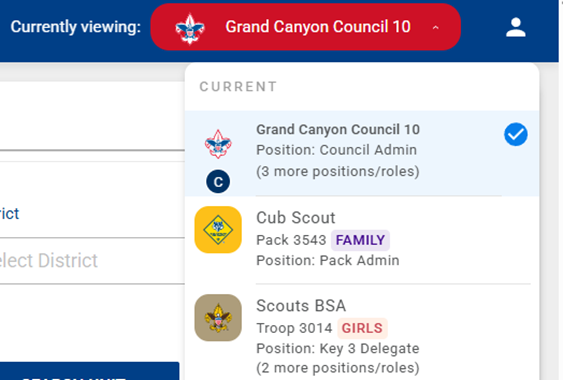
To see which badges you are approved to counsel: Click on the Profile menu item to the left and they will show up there under Merit Badges I’m Counseling
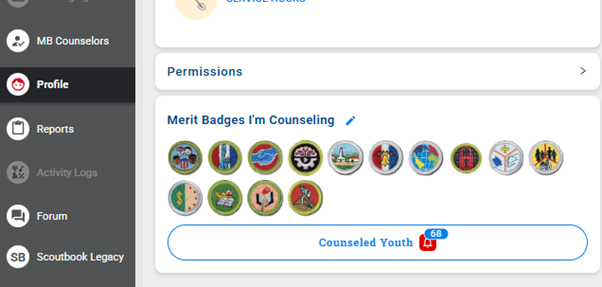
If you click on Counseled Youth, you will see which Scouts you are connected to for the badges you counsel. (more on this later)
In Scoutbook Plus you can display if you are available to counsel more youth or are busy. To do that, click on the edit pen on the right and select the preferences tab.
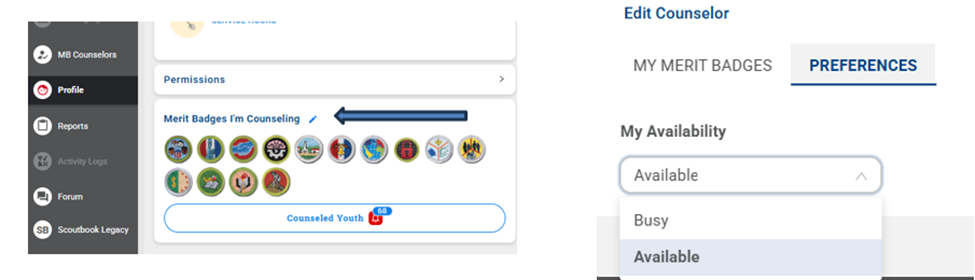
A MBC can also remove the assignment of a badge from their list by clicking on the My Merit Badges tab. You will still need to go through your council to have merit badges assigned to you.
Connecting Yourself to a Scout
Before you can work with a Scout in Scoutbook, you need to be connected (assigned) to them as a MBC for the badge. Merit Badge Counselors can connect themselves to a Scout they wish to counsel for a particular badge if they know the Scout’s last name and member ID. To do that go to your MBC Dashboard on the left:
Click on the Add Youth menu item

You will receive this pop-up:
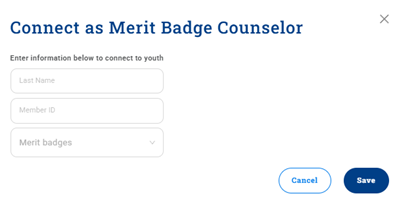
Put in the last name of the youth, their member ID and select the badge you wish to connect them to. And click Save.
To connect to multiple Scouts for one badge at one time, click on Bulk Actions pull down menu then Add Youths.
You will receive this pop-up:
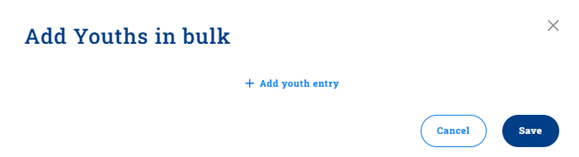
Then click on + Add youth entry. You will receive:
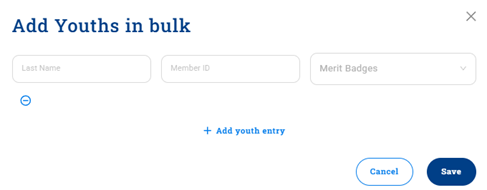
Then Put in the last name of the youth, their member ID and select the badge you wish to connect them to. Repeat this process until you have added all the youth you wish, then click save to save your work.
Disconnecting From a Scout
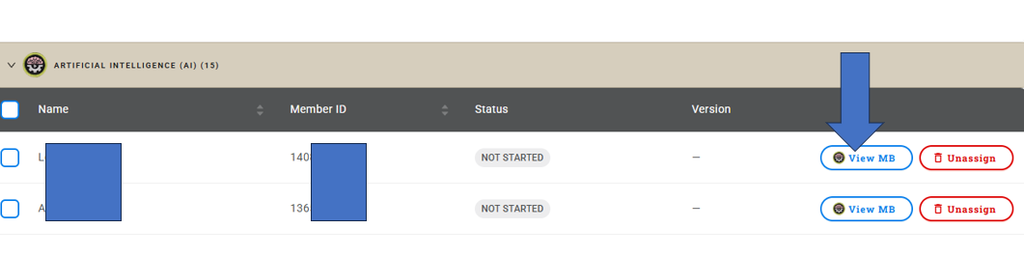
If you wish to disconnect from a Scout for a badge. Click on the View by Merit Badge on the MBC Dashboard page.
You will see each badge you are counseling, and if you click on the badge, a drop down of all the Scouts will appear.
Click on Unassign to the right to disconnect
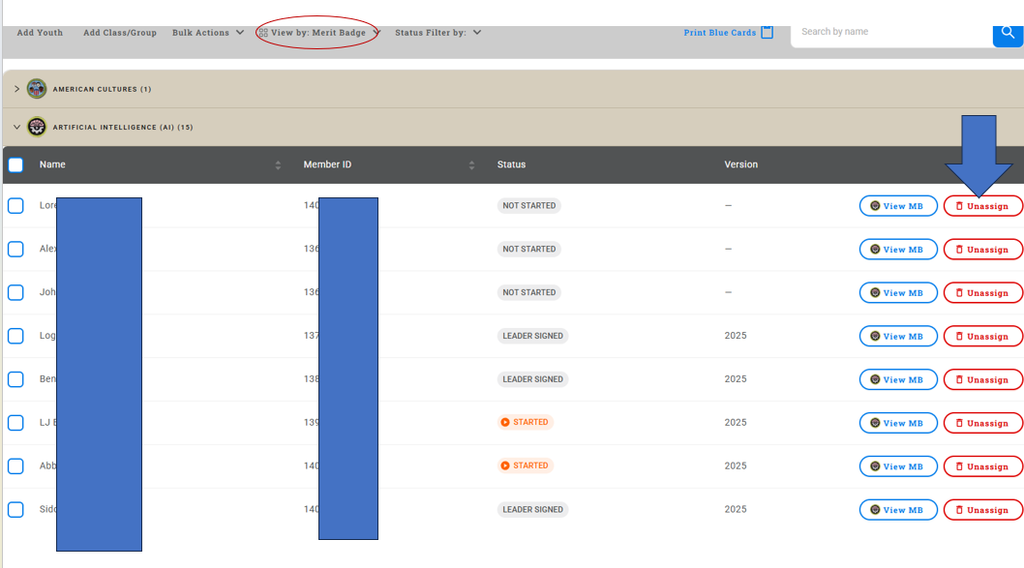
You can also Status Filter by Leader Approved, or Councilor Approved, or other filters; then select the Scouts you wish to unassign, and select Bulk Actions: Remove Youth to unassign (remove) a number of Scouts at one time.
Generating a Class Worksheet
To generate a class worksheet:
Click on your MBC Dashboard
Click on View by Youth
Select the Scouts you wish to work with and then select Generate Class Worksheet. You will then be asked to select a merit badge. Finally, select generate.
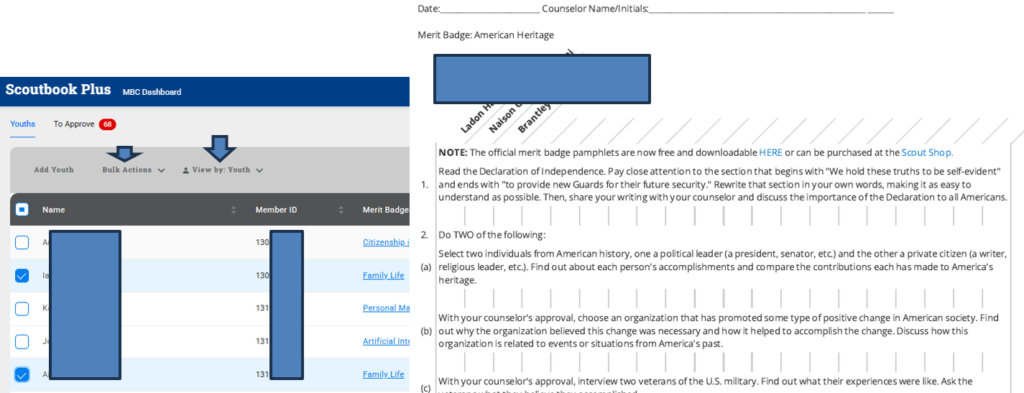
Recording Requirements for an Individual Scout
If viewing by merit badge: Click on View MB
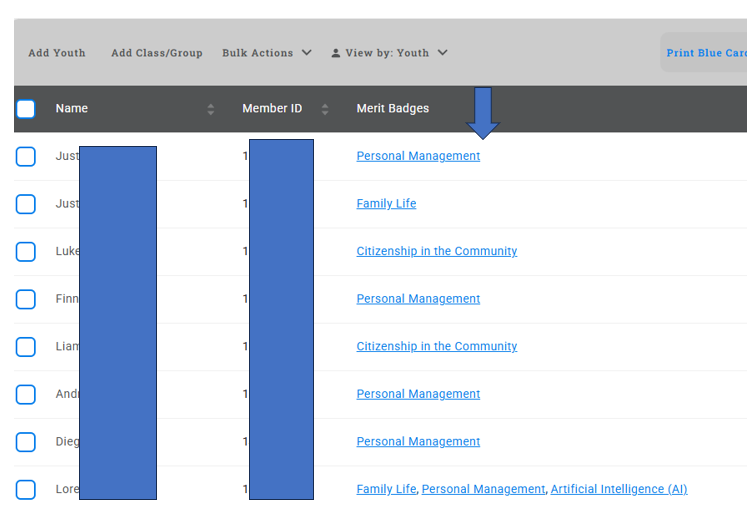
If Viewing by Youth: click on the badge name to the right of the Scout you wish to work on. You will be presented with the merit badge page for the Scout. You can click on individual requirements and enter requirement completion dates
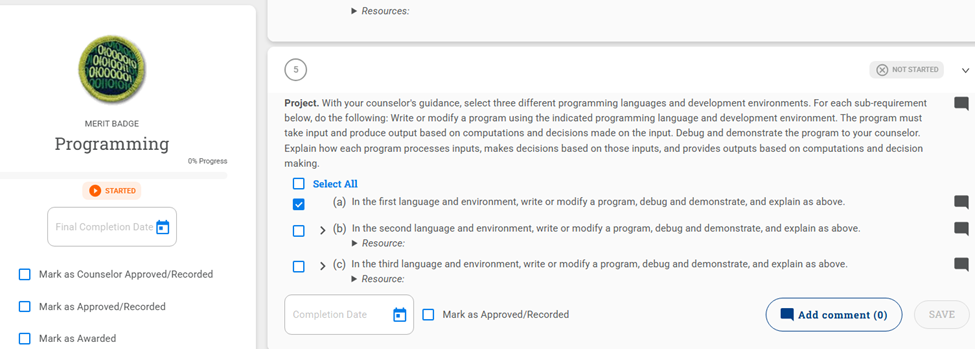
If you wish to mark multiple requirements complete: use the Quick Entry menu item at the top of the page:
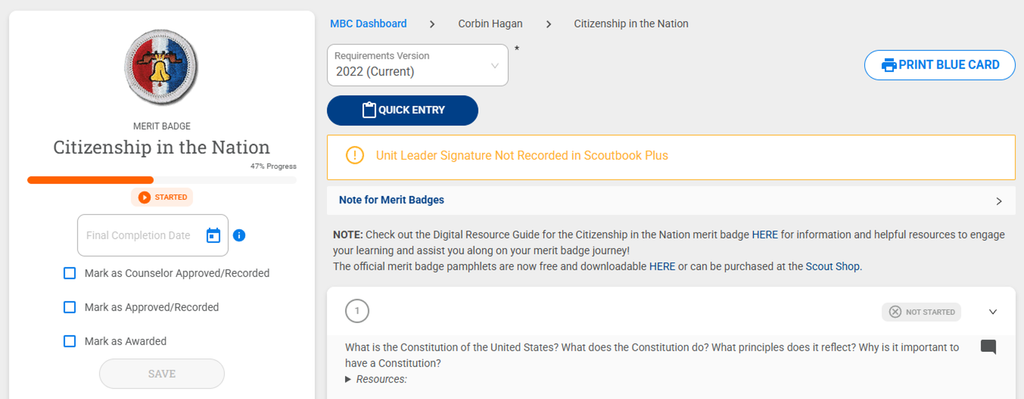
You will get a screen that looks like this:
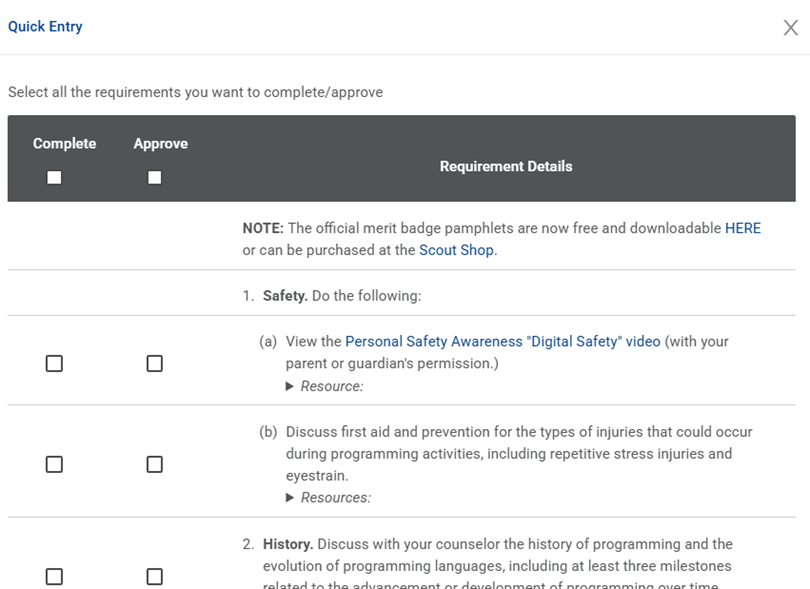
From here you can mark multiple requirements as approved.
Put in a date at the bottom of this screen and click save to save your approvals:
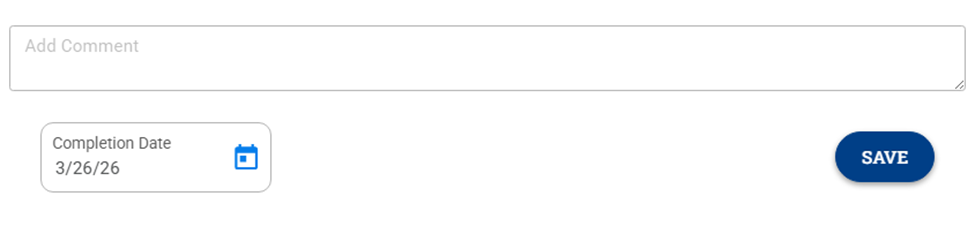
You can also add a comment if you wish.
Marking an Entire Badge as Approved
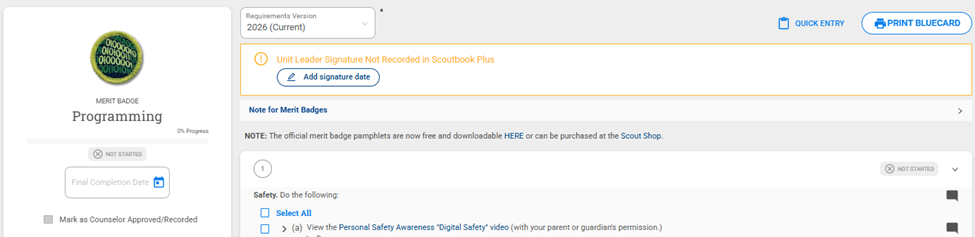
You can mark the entire badge completed and merit badge counselor approved from the main merit badge page:
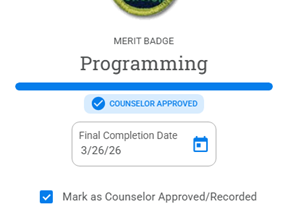
You can print a blue card for the badge and Scout by clicking on the Print Blue Card button in the upper right.
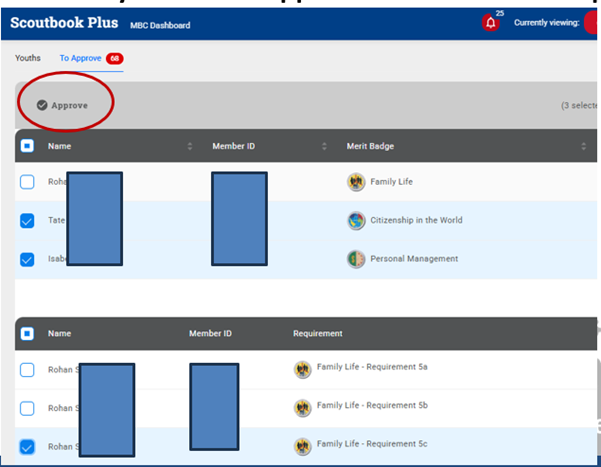
If requirements or a badge have been marked completed but not approved, you can mark them approved by clicking on your MBC Dashboard, and clicking on the To Approve tab. Check what you want to approve and select
Entering Badge Approvals for Multiple Youth
From your MBC Dashboard: select Bulk Actions then Merit Badge Bulk Entry.
Select the merit badge and version to work on.
You will be presented with the Scouts connected to you for that badge on the left, and the requirements on the right.
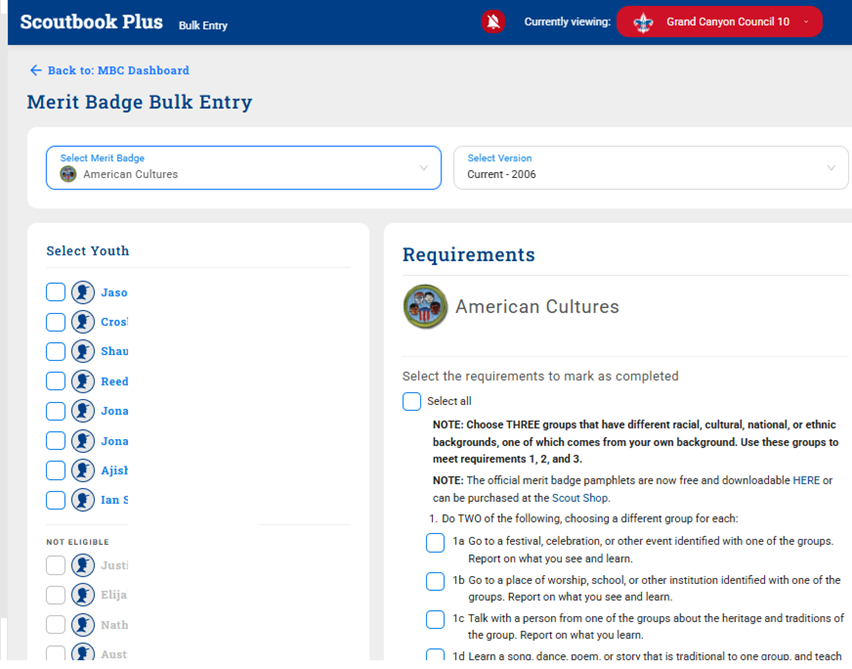
At the bottom of the page you will see a place to enter the date and a check box to indicate that you signed the Scout off on the requirement.

To Unapprove a Requirement
Assuming the troop hasn’t approved the badge yet: The MBC should try the following:
Go to MBC Dashboard
Display by Scout go to Scout
Click on badge next to Scout’s name; this will open up the personal MB page for that Scout for the MBC in MBC mode
Unapproving Requirements
Uncheck the Mark as Approved / Recorded box
SAVE
A calendar icon will appear next to the completion date. Click on the calendar icon next to the completion date and SAVE to remove the date:

Unapproving Sub Requirements
Next to the requirement number that can be approved/unapproved, there is a box and a “ > “

Click on the >
Click on the calendar icon next to the completion date that should remove the date) If the Mark as approved/recorded is checked, uncheck it.
Click Save
Do that for every requirement you want to unapproved.
Reports
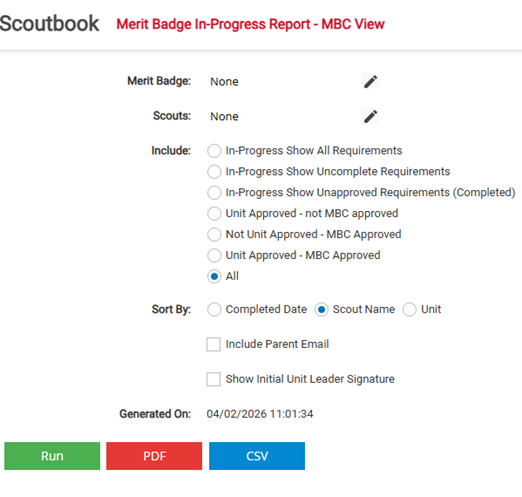
You can receive a merit badge progress report by clicking on Reports on the left menu and then on the MB In-Progress – MBC View report. This gives you the progress of the Scouts you are counseling sorted in a number of ways. (Note there is a short delay before recent changes in SB+ show up on the reports.)
Unit Guide to Working with Merit Badge Counselors in Scoutbook Plus
Merit badge counselors (MBC) can work with Scouts on badges in Scoutbook once the unit leadership assigns them to a badge. They will be able to approve requirements for the badge and they will be able to mark the entire badge as “Merit Badge Counselor Approved.” After a merit badge counselor approves a badge, the unit will need to unit approve the badge before the system will consider it completely earned by the Scout.
Assigning / Connecting a Merit Badge Counselor to a Scout for a Badge
Before a merit badge counselor can work with a youth on a merit badge in Scoutbook Plus, they need to be assigned to the Scout. MBCs can assign themselves to the Scout if you give them the Scout’s full name (as registered) and Member ID. Unit leaders with Edit and MBC Search rights can also assign a merit badge counselor to a Scout to work on a badge by clicking on the Scout on the Roster page, then clicking on the badge in the Scout’s Merit Badges section.
(Unit key 3 members and their delegates can check the Permissions Manager page in SB+ to adjust rights/positions in SB+)
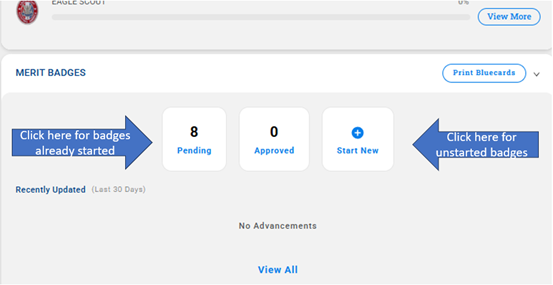
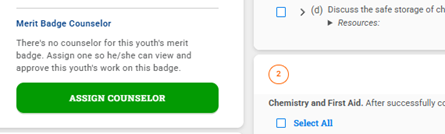
After navigating to the badge (for badges that have not been assigned to a counselor yet) you will see on the left an Assign Counselor button:
Click on the button and assign a merit badge counselor. You will need either the counselor’s last name and Member ID, or the counselor’s First Name, Last Name and Email (as registered.) Then click Search. You can also search for any counselor by clicking on Advanced Search.
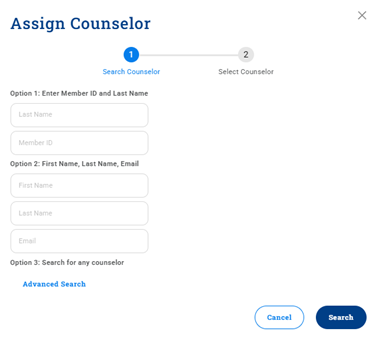
Search results will only show for Merit Badge Counselors that have been approved by their council to work with the badge you are in.
Once the proper counselor is found, select Assign.
Bulk assign merit badge Counselor
A unit can also bulk assign a merit badge counselor to the scouts from the MB Counselor meu. Once a merit badge counselor is found, click on the actions button then click assign and this window will be presented:

Removing an Assigned Counselor
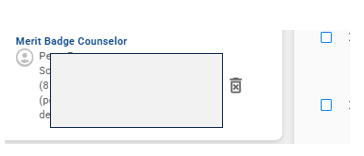
Unit leaders can remove a merit badge counselor assigned to a Scout by navigating to the badge for the Scout and clicking on the trash can next to a merit badge counselor’s name in the Merit Badge Counselor block.
Searching the Merit Badge Counselor List
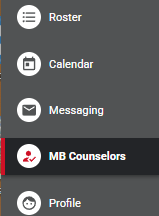
Unit Leaders with MBC Search rights can search for a merit badge counselor without assigning them to a merit badge. To do this, click on the MB Counselor menu item on the left of the Roster page, you will be presented with a search page.
Select the badge you are looking for a counselor for; the size of the search (the smaller the size the faster the search); if the MBC has marked themselves available or not; the zip code you wish to search from and the proximity to the zip code. These parameters are important because the smaller your search area, the faster and more accurate the results will be for you.
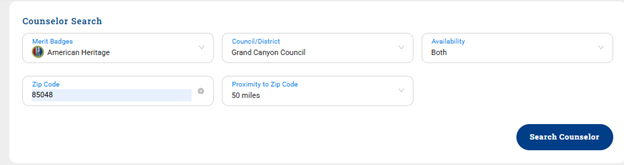
Click Search Counselor, and a list will be given to you on the bottom of the page.