
Set up online payments:
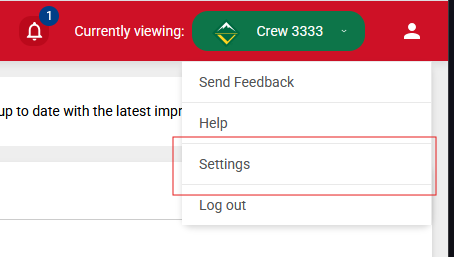
Log into advancements.scouting.org then in the upper right click on the person icon and select settings:
Scroll down to Online Direct Payment section:
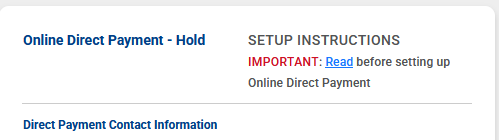
Be sure to click on the blue READ text for instructions.
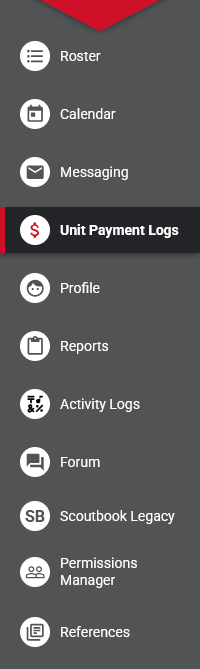
To access the Payment logs click on Unit Payment Logs in the left side menu
This will bring up the Roster and payment log menu
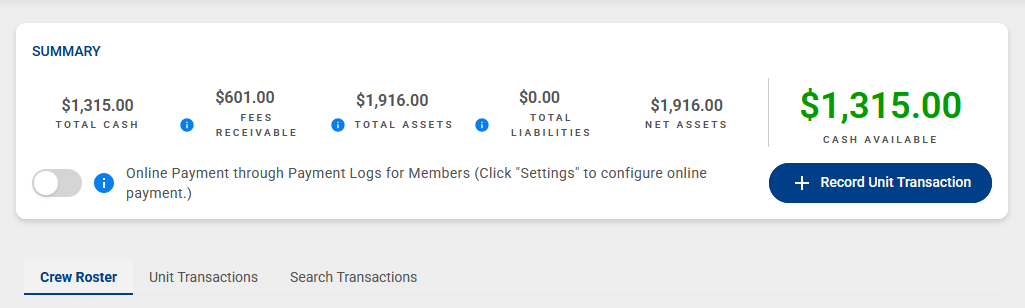
You can then show Unit Transactions or click on Search Transactions
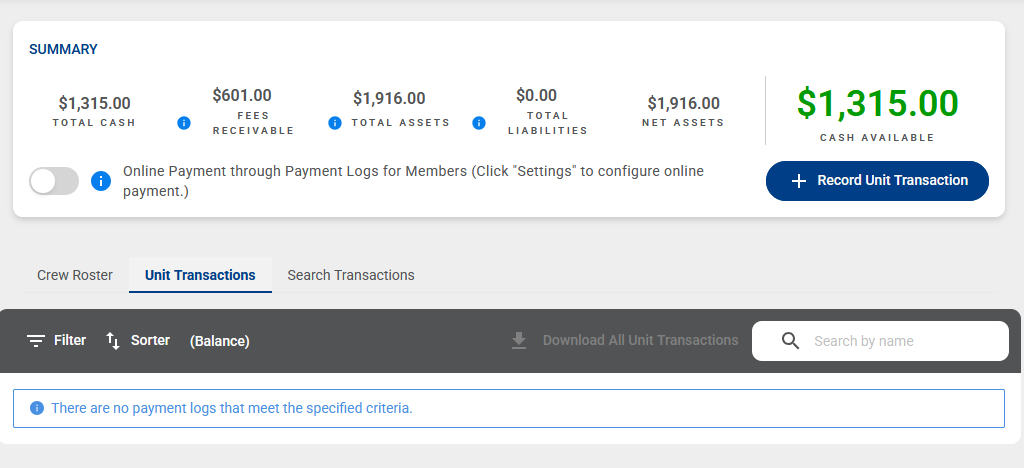
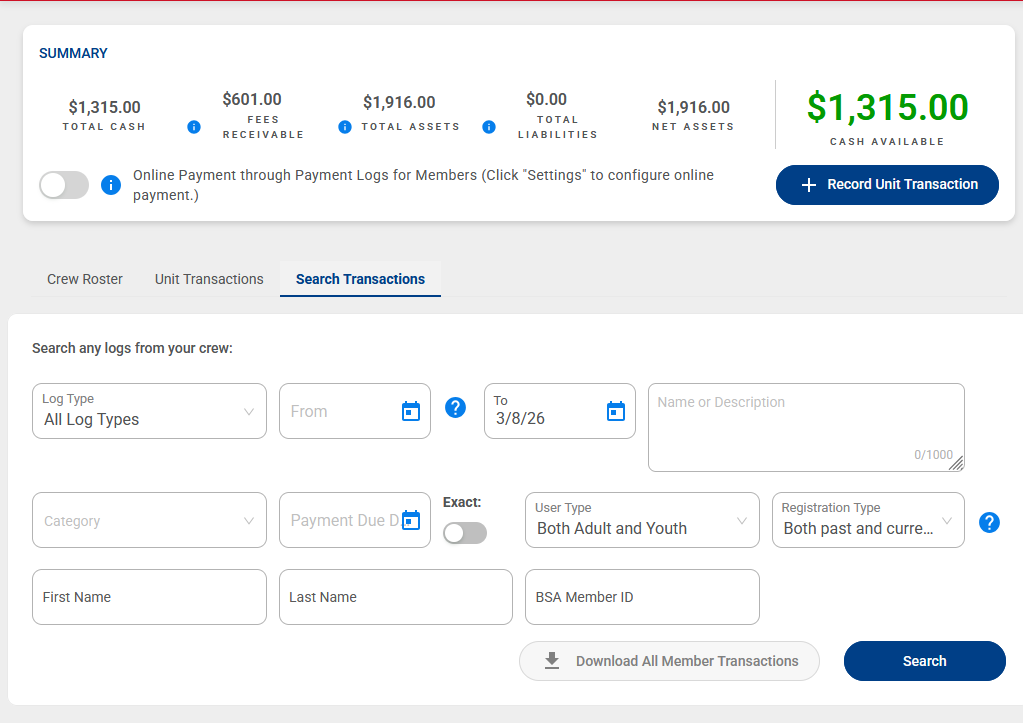
Click on Record Unit Transaction to enter an item:
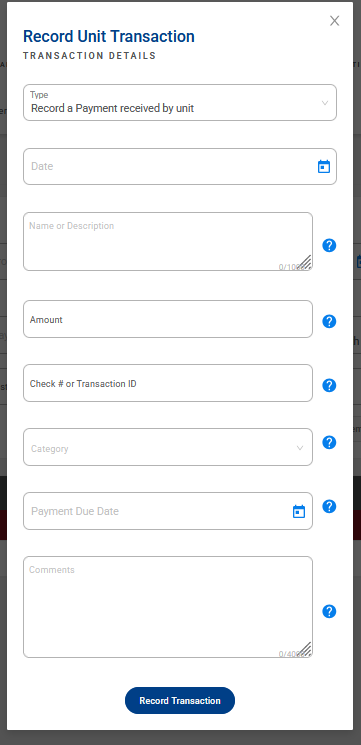
You can record a Payment Received or a Payment Made by the unit. The unit payment log would be used for adjusting unit balance to match bank balance and for transactions not related to scout, parent or leader payment logs entries.
Scout Payment Logs:
From the roster – click on View Details to access a scout individual log:
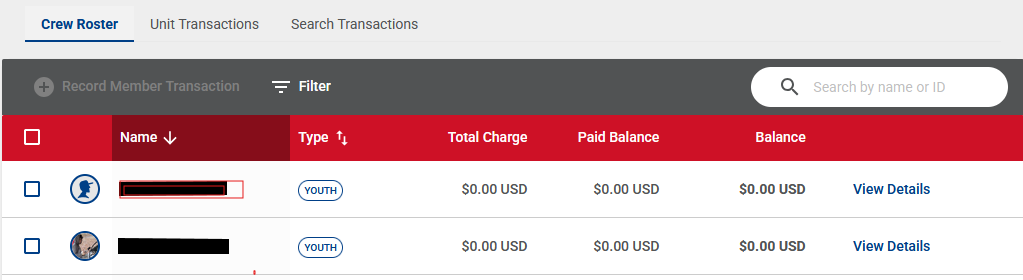
Scout Payment log screen:
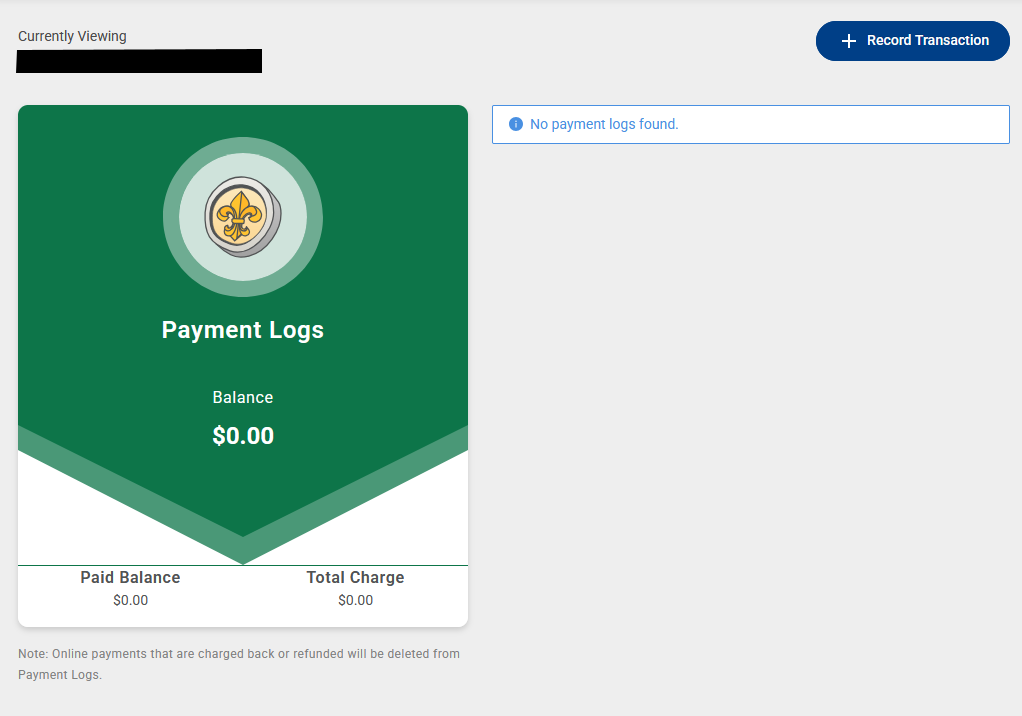
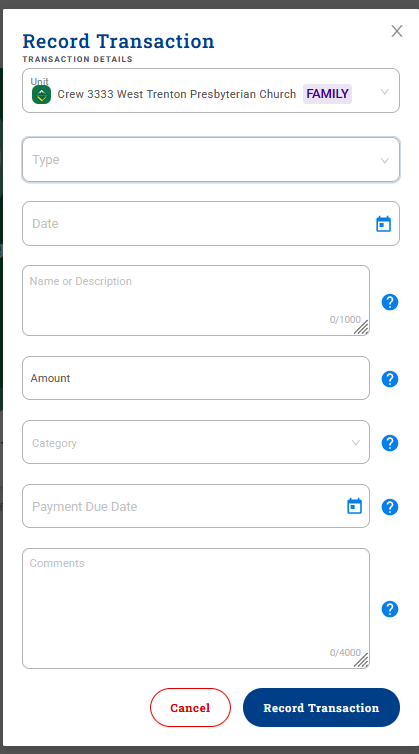
Click on Record Transaction to enter a transaction
Transaction types:
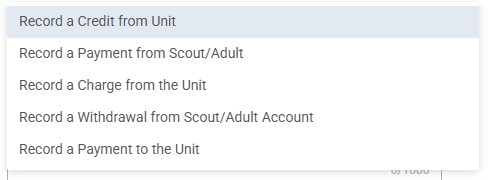
Please note that using Record a Payment to the Unit will add an initiated online credit to the unit.
The category section will build a list in the same way as the legacy scoutbook payment log. As you enter items they will be added to the list.
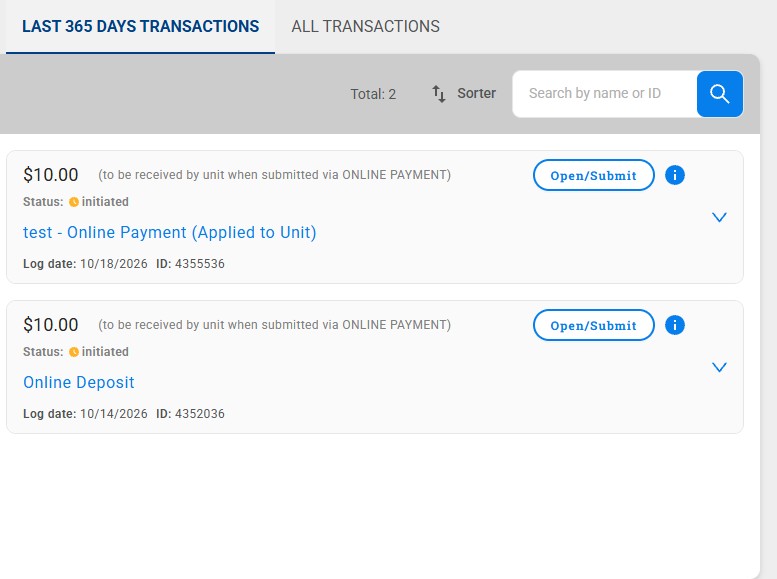
A scout with payment log entries will list transactions in the last 365 days or clicking all transactions will list those:
The example below is with the on-line payment set up and enabled
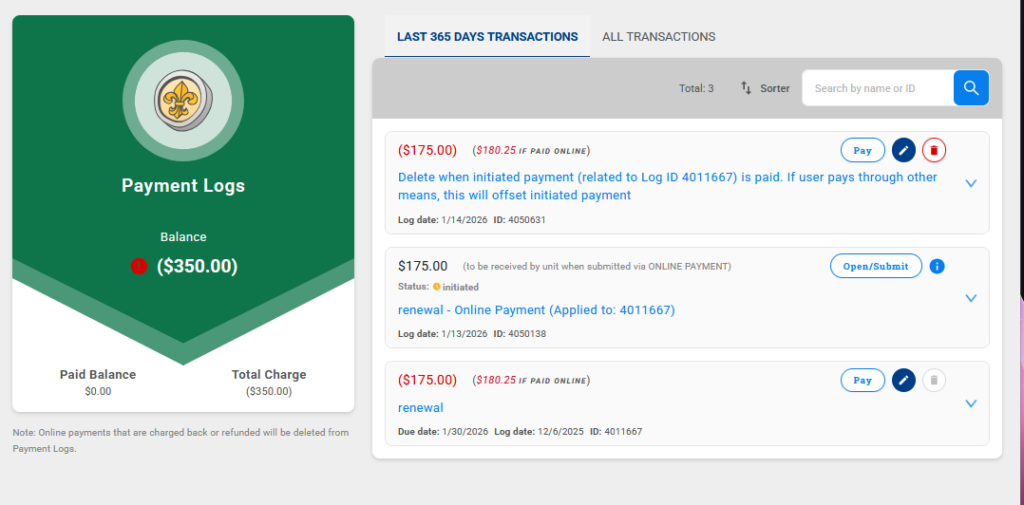
Scout Payment Log Report is accessed from the roster then click on the scout then in the right hand side is a tile for reports. Click on the Payment Log Report.
For a full report of all transactions select All in the Quick Date Range then select Detail and summary. This will give you all transactions and and the end the Final Balance Report.
Bulk Transactions
To Enter bulk transactions navigate to the Unit Payment Logs in the left hand menu,
Set the filter based on those who will need to have the transaction applied to their record

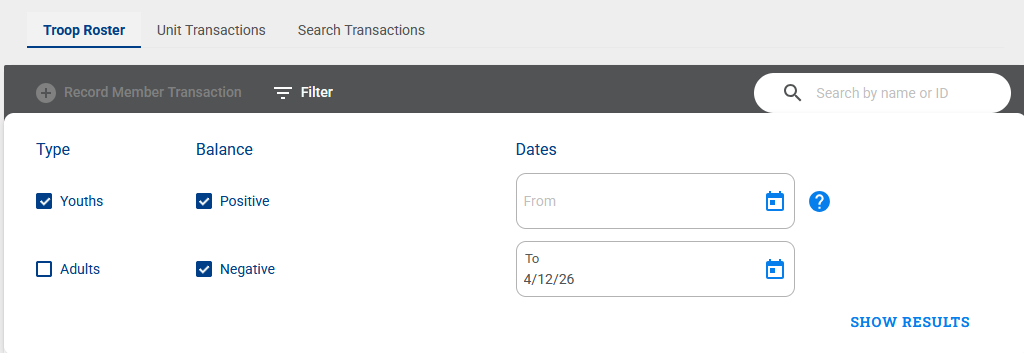
Check the top menu box to select all or scroll through the roster to select members to record the transaction

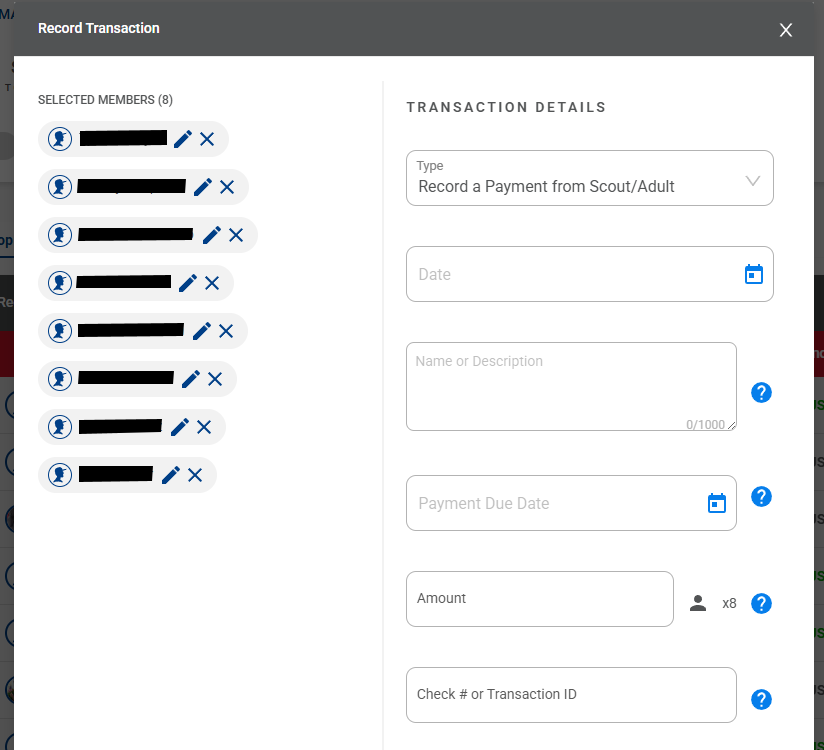
Custom amount Entry is done via the pencil icon next to the scout name
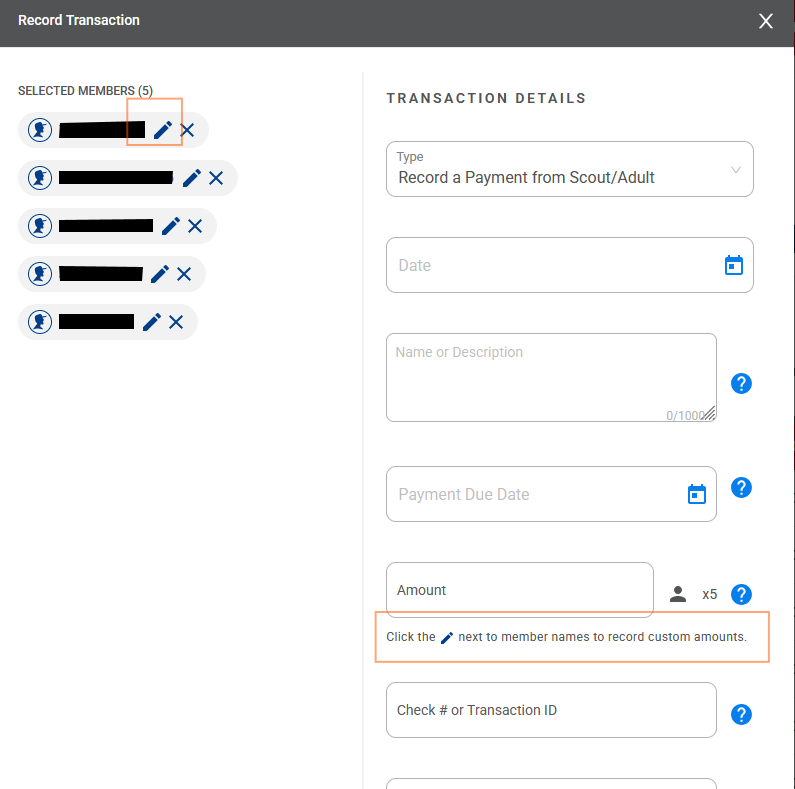
Setting up your Initial Balances
If no one in your unit has used the Payment logs, simply enter Record a Payment Received by the Unit to the Unit Payment Log to be equal to your bank balance. Then, if you have Scout’s that should have a positive balance in their accounts, use the Record a Credit From Unit option to initialize their account. Or, it eh scout has an initial amount due, use the Record a Charge From the Unit in their account.
If your are starting with old charges and credits – and your member account balances look good but your actual bank balance does not match the Total Cash, then determine how much actual cash you are holding for your unit and your scouts. This is your “Actual Cash”. On your unit page in Scoutbook, click on the Unit Payments Log link, which provides the Financial Information summary shown above.
Using the numbers provided, calculate this Adjustment:
Adjustment = Actual Cash – Total Cash (from the Scoutbook report)
If your Adjustment is positive, click the Record a Payment received by unit radio button. If it is negative, click the Record a Payment made by unit button. Enter a description, and put Adjustment in the Amount field. Note, if your Adjustment is negative, enter it as a positive number here.
Unit and Scout payment log access
The following have access to the Payment Logs:
Unit Leader
Committee Chair
Charter Org Rep
Key 3 Delegates
Unit Treasurer
Clear past member balances
In the transaction search you want to set the registration type to Past members ONLY. This will then present a list of past members

You can then click on each line to enter a transaction to zero the outstanding debit or credit balance
The Financial Information categories are:
- Total Cash: How much cash is in the system. This is typically a bank balance plus any petty cash.
- Fees Receivable (Amount due by Youth/Adult): How much is owed by youth/adult (sum of the negative youth/adult payment log balances)
- Total Liabilities (Payables): How much is being held for youth/adult (sum of the positive youth/adult payment log balances)
- Total Assets: How much cash the unit would have if all the youth/adult paid their debts
- Net Assets: How much cash the merchant system would have if all the youth/adult paid their debts, and the unit refunded any balances held by the youth/adult.
- Cash Available (Conservative): How much the unit could spend without touching youth/adult Cash